Lorky`s Blog - Techno ressources and general informations for everyone !
Important
To filter the blog, please use theses tag:
General news.
Website related post
website.
parental-control about technology.
technology post.
Note
All blog links are archived here.
Windows 10 IoT – Removing Windows Update history
October 29, 2020, 9:38 pm
Hi everyone
In my latest blog post I talked on how to patch a IoT terminal when the SSD is small.
A tip not talked inside the blog post is how to remove unnecessary files after the update.
I dont recommend that tip if you have plenty of disk space, as it will break for you some ability, like to remove Windows KB.
The command to use is;
Dism.exe /online /Cleanup-Image /StartComponentCleanup /ResetBase
I will quote the same warning than on the Windows website;
Warning
All existing service packs and updates cannot be uninstalled after this command is completed. This will not block the uninstallation of future service packs or updates.
By running the command I save a 1 or 2 gigs. It's not a lot, but on low disk space disk it mean a lot.
Thanks for reading, today was a small tip :)
Windows 10 IoT - Windows Update on small hard disk
October 19, 2020, 9:46 pm
Hi everyone
On IoT terminal often the hard disk is small, and there is a activity that can be a pain in such device, it's to install a cumulative update.
The last update I did I had in example 7gigs of free space, and the uncompressing of the patch did fill the space completely to make the update fail.
To show the problem you can see these printscreens, please remark the free space available;
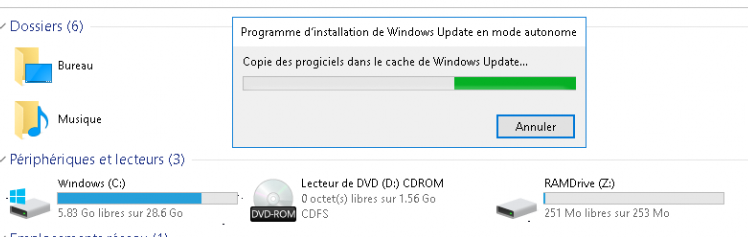
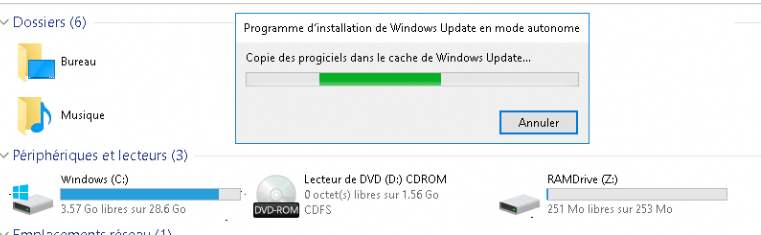
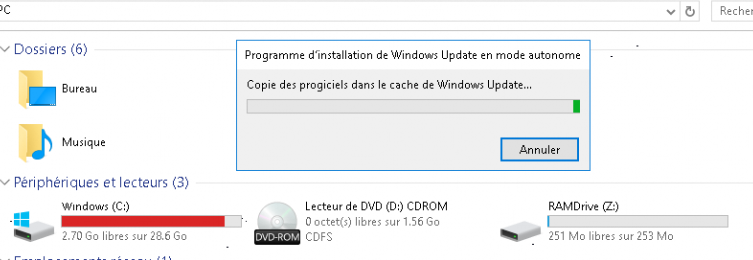
In my example in my struggle to install the patch, which is by itself 1.6gig, I tried to run the patch from the network, but voila, it's not possible. You would receive such 0x80070003 error.
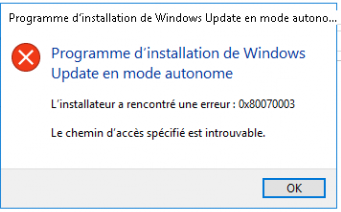
The tip I give today is to make an ISO with the patch, so you can mount the .ISO from a network share to trick the system.
I my case as Windows can't make the ISO natively, I got a free tool to make the job, wincdemu. A lot of other tool exist to make that work by the way.
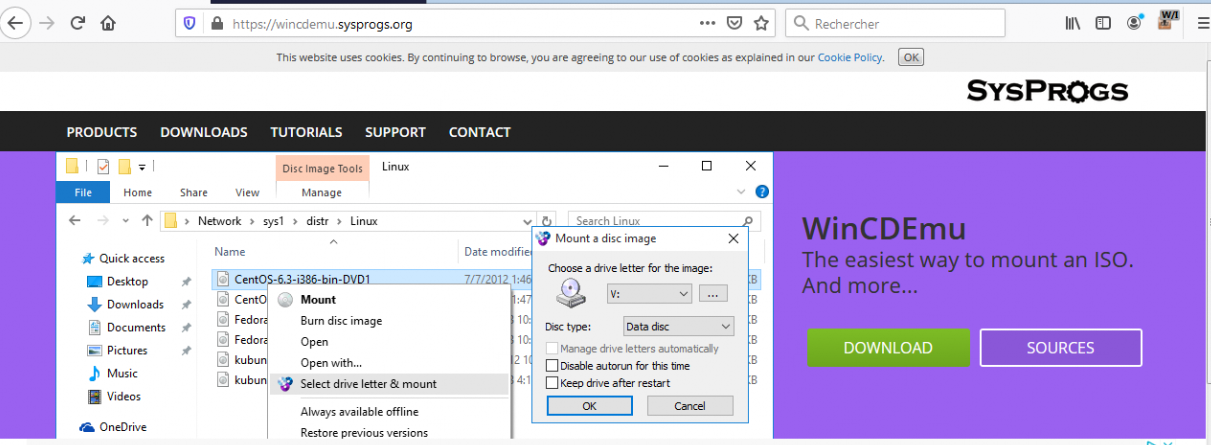
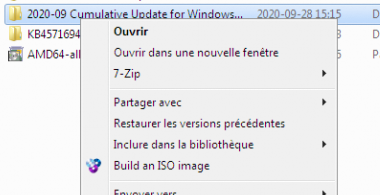
After the tool is installed, you can just right click your update folder, and select the Build an ISO image option.
You can name the ISO like patch.ISO.

In the Windows after you can mount the ISO to run the setup from there.


At that point you can wait.
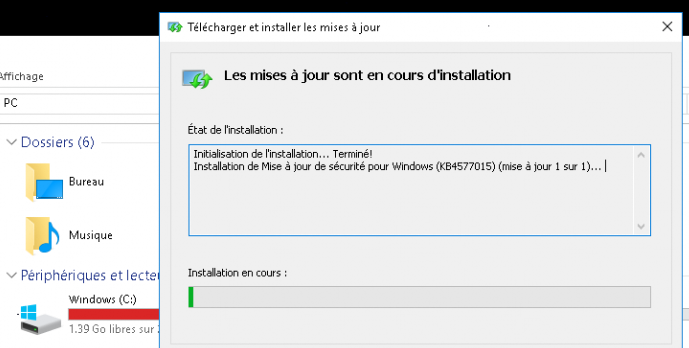
Thanks everyone, hope the tip help some
Windows 10 - Unified Write Filter - Quick tip for the monitor resolution
September 25, 2020, 3:51 pm
Hi everyone
Today I wanted to share a quick tip if you want to allow your users to set their own resolution.
By default the unified write filter allow some registry key, but when a user set a resolution, that setting currently impact all users sessions, so that specific setting is inside the HKLM.
As the seeting can change depending on the terminal you use, I would give you the tip to find the correct keys.
I used process monitor, and I log what SystemSettings do in the registry when you click to change the resolution, in example;
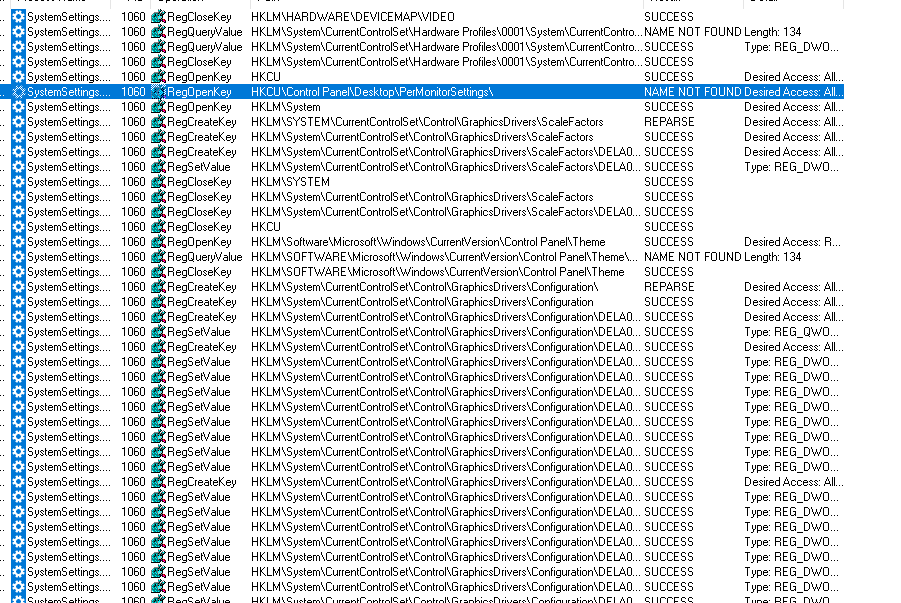
As you can see, the registry key might be long, you can select to easilly copy it;
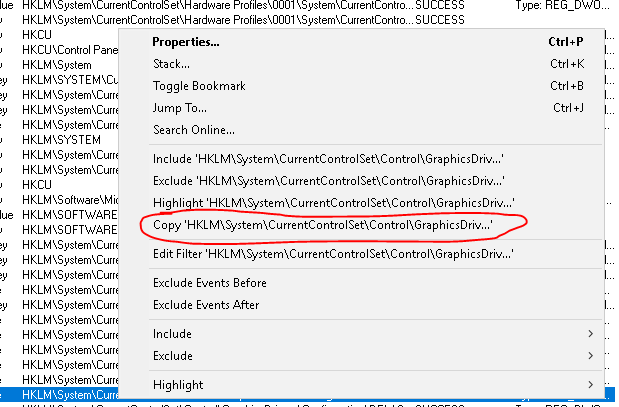
Inside the terminal after, add the exception for that registry key hive;

Thanks for the reading
In Remote Desktop how to send CTRL-ALT-DEL
September 10, 2020, 10:54 pm
Hi everyone, today I waned to share a small tip that not everyone know; how to send the famous key stroke CTRL-ALT-DELETE to the remote system in Remote Desktop.
It's always useful, in case you want to bring the task manager, or to try to recover from a unresponsible session.
ctrl+alt+end is the prescribed way to do this.
A small tip it's, but it's handy to have :)
You can see other shortcut there; Remote Desktop Tips and Tricks
Windows 10 build 2004 - Login script - Net Use Problem
August 31, 2020, 1:06 pmHi everyone
Today I wanted to share a small problem with Windows 10's newer build, 2004.
Login script that use net use no longer seem able to be used, the mapping no longer work.
To work around the issue you have two possible's way;
Add a timeout in the script's beginning;
timeout /t 60
or add a delete script first before the mapping;
NET USE * /DELETE /YES persistent: yes
Be sure that setting is set too, set it if not already before trying to make the workaround;
Computer Configuration
» Administrative Templates
» System
» Logon
» Always wait for the network at computer startup and logon
Some other mentionned that Enabling SMBv2 could help, but it all depend on your environnement, as in my case it happened between Windows 10 2004 client and a new DC in 2019.