Windows Server 2012 R2 - Firewall Logging for RDP (or any other service!)
October 25, 2016, 2:53 amWant to restrict a public service in your server ?
Today I'am giving a small tip if your router does not allow access-list, so we will do it at 100% from the server's side.
Let's start with an example with RDP.
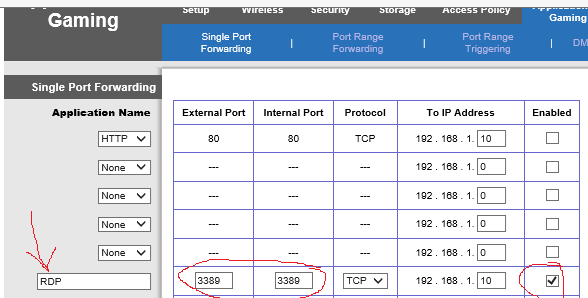
We start by forwarding the port 3389 to our server. An example below with a small Linksys.
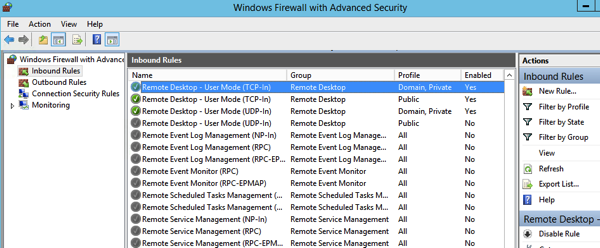
In the Windows Firewall we check if RDP is Allowed and we can click to allow only the specified IP's range.
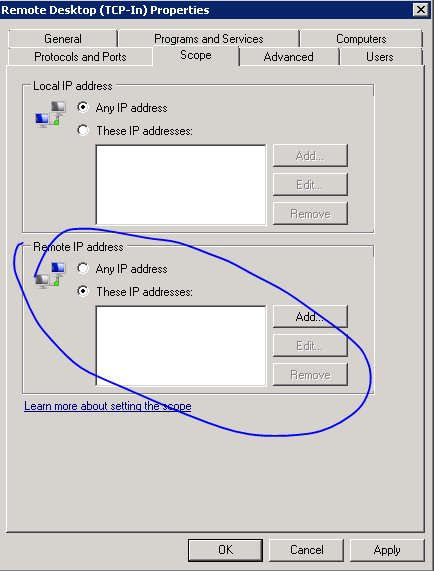
In the screen below we enter the wanted IP's group. (For me it was my local ISP range (pic source)
Now the more obscure step, we gonna configure our firewall to log blocked entry. The firewall's log is found there by default: %windir%\system32\logfiles\firewall\pfirewall.log.
We execute that query to allow the log be be fill with DROP'ed connection attempt.
netsh advfirewall set allprofiles logging droppedconnections enable
After a while if our rule work correctly, our log should show some blocked attempt.
2016-10-22 10:02:35 DROP TCP 179.43.149.5 192.168.1.10 26286 3389 52 S 2834367233 0 8192 - - - RECEIVE
2016-10-22 11:34:48 DROP TCP 185.93.185.7 192.168.1.10 45610 3389 40 S 3512451859 0 1024 - - - RECEIVE
2016-10-22 11:44:54 DROP TCP 47.18.154.28 192.168.1.10 48447 3389 40 S 763731365 0 1024 - - - RECEIVE
2016-10-22 12:03:24 DROP TCP 171.8.0.87 192.168.1.10 30612 3389 40 S 1989410816 0 16384 - - - RECEIVE
2016-10-22 12:42:31 DROP TCP 104.223.180.20 192.168.1.10 60328 3389 40 S 3936878592 0 16384 - - - RECEIVE
2016-10-22 14:04:36 DROP TCP 183.60.48.25 192.168.1.10 12213 3389 40 S 62195378 0 8192 - - - RECEIVE
2016-10-22 15:02:26 DROP TCP 61.240.144.65 192.168.1.10 42805 3389 40 S 2066287928 0 1024 - - - RECEIVE
At this step if our IP's range is correctly setupped, we can be more secure on the internet, and don't worry to see connection attempt, a lot of bot/robot try to scan well know port.
Thanks !
Windows VDA - Script to re-install the Microsoft Update add-on
October 25, 2016, 2:02 amIf someday you fall on a machine that the Microsoft Update does not want to install for a reason X, there is a quick fix for that issue.
There is the script to run to enable it :
Set ServiceManager = CreateObject("Microsoft.Update.ServiceManager")
ServiceManager.ClientApplicationID = "My App"
‘add the Microsoft Update Service by GUID
Set NewUpdateService = ServiceManager.AddService2("7971f918-a847-4430-9279-4a52d1efe18d",7,"")
There is the script to disable it :
Set ServiceManager = CreateObject("Microsoft.Update.ServiceManager")
ServiceManager.ClientApplicationID = "My App"
‘remove the Microsoft Update Service by GUID
ServiceManager.RemoveService("7971f918-a847-4430-9279-4a52d1efe18d")
Thanks !
Windows VDA / Terminal Server session - Kill for good that Java update Warning !
October 25, 2016, 1:41 amEver wonder how to really kill that java updater that keep returning back into your Windows VDA start up or within your users Terminal Session ?
Justcheck.exe scheduler do an online check, but java got another method too, with an expiration date of the product.
First, create that environment variable:
setx deployment.expiration.check.enabled false /m
After lets go there; c:\windows\sun\java
Create Deployment.config file
Enter that into it:
deployment.system.config=file\:C\:/Windows/Sun/Java/Deployment/deployment.properties
deployment.system.config.mandatory=true
Create Deployment.properties file
deployment.javaws.autodownload=never
deployment.javaws.autodownload.locked
deployment.expiration.check.enabled=false
deployment.expiration.check.enabled.locked
deployment.expiration.check.enabled.locked
deployment.expiration.decision=never
deployment.expiration.decision.locked
deployment.expiration.decision.suppression=true
deployment.expiration.decision.suppression.locked
Thanks :) and enjoy the tip
The Citrix purge ! part 1
October 25, 2016, 1:18 amThere is part #1 of a series of some blog I will write to counter the great purge citrix started to remove some of their CTX from the Internet.. (I have no idea why they do so, but the information was still handy even today)
The first tip I will share I can't find the CTX number it was under... (no longer indexed)
Latency when using Receiver 3+ when connecting to an old farm...
If you have to still connect to an old farm, and your keyboard really lag, and your mouse, make sure that registry key is there in your client;
32bit
\[HKEY_LOCAL_MACHINE\SOFTWARE\Citrix\ICA Client\Engine\Lockdown Profiles\All Regions\Lockdown\Virtual Channels\Seamless Windows\]"DeferredUpdateMode"="False"
64bit
\[HKEY_LOCAL_MACHINE\SOFTWARE\Wow6432Node\Citrix\ICA Client\Engine\Lockdown Profiles\All Regions\Lockdown\Virtual Channels\Seamless Windows\]"DeferredUpdateMode"="False"
Windows - Outgoing Fax in the Console
October 25, 2016, 12:55 amHaving difficulty with the fax console for your user to see outgoing fax for everyone ?
There is some generic tip to help you out.
First, logging enabled ?
Open Fax Service Manager.
In the left pane, right-click Fax, and then click Properties.
1. On the Archives tab, please check the "Archive all faxes to this folder" item, and the sent faxes will be stored in this folder.
and
Open Fax Service Manager.
- Right-click Fax, and then click Properties.
- On the Activity Logging tab:
-- Enable Log outgoing fax activity check box to start logging outgoing faxes.
Secondly, it's a Windows Server 2008 R2 or the client is Windows 7 ?
Check to see if those patch are installed:
Consider the following scenario:You have a computer that is running Windows Server 2008 R2 or Windows 7.
You run an application or a service that calls the FaxEnumJobs function to query fax jobs that are on a FAX server.
In this scenario, the FaxEnumJobs function does not return all the fax jobs. The function returns only the fax jobs of the current user account.For example, an administrator account can view only the fax jobs of the administrator account.
Consider the following scenario:You install the Fax Server role on a computer that is running Windows Server 2008 R2.
Your account is assigned the View Outgoing Jobs permission in Fax Service Manager on the Fax server.
You open Windows Fax and Scan to check outgoing faxes.
In this scenario, you cannot view or manage outgoing faxes from other users.
On a computer that is running Windows 7 or Windows Server 2008 R2, you have an application that uses the Fax Service Extended COM API to query fax jobs on a Fax server. However, the application can only enumerate the fax jobs of the current user account that you use to run the application.
Note This issue occurs even when you run the application by using a user account that has necessary permissions to enumerate the fax jobs of all users.
Thirdly, a nice workaround if you need to have a user manage the outgoing box. A Script that create an .html's file with all the outgoing fax information (that you can share on IIS after). Using it in a planned task to run it at each hour in example can do the trick.
The script is not from me, credit to Logman for the modified version, and original version is there
# This script takes the outboxlog.txt file from the Windows Server fax service
# and parses it to find faxes that did not complete. Results are dumped as a
# Web page. Normally a user can view only the status of their own faxes.
# This allows you to view failed faxes for any user.
# This script can be run as a scheduled task to provide a constantly updated list
# Required command line in scheduled task is:
# powershell.exe "& 'C:\ProgramData\Microsoft\Windows NT\MSFax\ActivityLog\ParseOutbox.ps1'"
# Created by Byron Wright, byron@conexion.ca
# Define the file locations used.
\$Source="C:\ProgramData\Microsoft\Windows NT\MSFax\ActivityLog\outboxLog.txt"
\$TempSource="C:\ProgramData\Microsoft\Windows NT\MSFax\ActivityLog\outboxlogtemp.txt"
\$CsvDestination="C:\ProgramData\Microsoft\Windows NT\MSFax\ActivityLog\outboxlog.csv"
\$HTMLDestination="C:\inetpub\wwwroot\FailedFaxes.htm"
# Import-TabDelimited function taken from The PowerShell Guy
# Source located at http://thepowershellguy.com/blogs/posh/archive/2007/03/31/powershell-examples-used-on-ars-technica.aspx
function Import-TabDelimited (\$Path) {
gc \$path |% {\$header = \$true} {
if (\$header){
\$h = \$_.split("`t")
\$header = \$false
}
Else {
\$r = new-object object
\$_.split("`t") |% {\$i=0}{
\$r | add-Member -memberType noteProperty -name \$h[\$i] -value \$_
\$i++
}
\$r
}
}
}
#Processing the text file may lock it and cause problems on a busy fax server
#So, copy it quick.
Copy-Item -Path \$Source -Destination \$TempSource
#Convert to Outboxlog.txt to a csv file
Import-TabDelimited -Path \$TempSource | Export-csv -Path \$CsvDestination -NoTypeInformation
#Get a list of faxes that failed by looking at the Status column
#Note that the column name includes double quote. Single quotes used to allow that.
\$BadFaxes=import-csv -Path \$CsvDestination | where {\$_.'"Status"' -eq '"Transmission Error"'} | Sort-Object {[datetime] \$_.'"SubmissionTime"'} -descending
#Dump bad faxes to an HTML file. The Select-Object cmdlet is selecting the columns to include.
#Again note that double quotes are part of the column name.
# "JobID" "ParentJobID" "SubmissionTime" "Scheduled" "Status" "ErrorDesc" "ErrorCode" "StartTime" "EndTime"
# "Device" "DialedNumber" "CSID" "TSID" "Pages" "TotalPages" "QueueFileName" "Document" "FileSize" "Retries"
# "ServerCoverPage" "CoverPageSubject" "CoverPageNote" "UserName" "SenderName" "SenderFaxNumber"
# "SenderCompany" "SenderStreet" "SenderCity" "SenderZipCode" "SenderCountry/Region" "SenderTitle"
# "SenderDepartment" "SenderOffice" "SenderHomePhone" "SenderOfficePhone" "SenderEMail" "RecipientName"
# "RecipientFaxNumber" "RecipientCompany" "RecipientStreet" "RecipientCity" "RecipientZipCode" "RecipientCountry/Region"
# "RecipientTitle" "RecipientDepartment" "RecipientOffice" "RecipientHomePhone" "RecipientOfficePhone"
# "RecipientEMail" "BillingCode"
\$Header = @"
\<style>
TABLE {border-width: 1px;border-style: solid;border-color: black;border-collapse: collapse;}
TH {border-width: 1px;padding: 3px;border-style: solid;border-color: black;background-color: #6495ED;}
TD {border-width: 1px;padding: 3px;border-style: solid;border-color: black;}
\</style>
"@
\$Pre = "\<H1>Failed Faxes: \$(Get-Date -format 'g')\</H1>"
\$Post = "\<H3>\$(Get-Date -format 'g')\</H3>"
\$BadFaxes | Select-Object '"SubmissionTime"','"RecipientName"','"RecipientFaxNumber"','"CoverPageSubject"','"Retries"','"ErrorDesc"' | ConvertTo-HTML -Body \$Header -PreContent \$Pre -PostContent \$Post | Out-File -FilePath \$HTMLDestination