Dell | Wyse Terminal badly support VLAN tagging and DHCP problem
March 3, 2014, 11:12 pmHi, today I will talk about a issue I found today.
The Wyse Xenith & CL0 serie brougth a lot of headache for the DHCP's request, as it seem to spam before the network port open. The STP kill the DHCP's attemp. So, the fix is quite easy, port-fast for each port.
Today I felt on a bigger problem. After some upgrade in my park, I found myselft with the re-surfacing DHCP's problem. I was there, why ???
I wireshark'ed the network traffic, and after some test I found that tagged VLAN's traffic is just not an option with those Wyse.
I was in the default VLAN's ID (1), and the port set as access or trunk or any other type just didn't work. I even see other DHCP offer, wich was really strange... (DHCP offer from the VLAN 50)
Thus, now I tested it with a old dummy switch, and no more problem ....
The moral of the story :
User HAPPY on DELL Client = port-fast + no VLAN
Windows 7 VDI and ESX 5.1 - BSOD or PVS slowliness !!
January 3, 2014, 6:07 pmHi everyone !
Did you have a Citrix Provisionning Server to stream some Windows 7 machine ? and they are hosted on Windows & ??
To be ok, you need a private KB, and to do that;
- Make your golden image.
- Be sure it's a VMXNET3 NIC. Not a E1000.
- Install the KB :
- Follow those step (Starting a Target Device Displays a Blue Screen on vSphere), thus making etherne## the same in the virtual machine and the template.
- From there, you need a last change, on your ESX's host you need to set that at false.
esxcli system settings kernel set -s netNetqueueEnabled -v FALSE
From there your VDI should boot ok, and be speedy !
Thanks
Citrix Provisioning Services 7.1.1 Install Media Error
November 26, 2013, 4:33 pmHi everyone !
I wanted to share that if you use the Citrix PVS install media 7.1.1 and that you need the local SQLExpress, THEN install it FIRST !
I did three test so far, the setup does not prompts any error if you select to install it, but it's missing in the end.
You will see that you CAN'T install it afterhand. It seem to leave a corruption in the operating system.
So, install it before installing the PVS !!
Thanks
Windows 2012 R2: How to install and prepare for Active Directory
November 7, 2013, 2:48 pmThe Windows installation got simplified with the time as you will see.
Let's review the minimum spec together. Be aware in my document I will act as it's a new fresh install, not a upgrade.
You will need that to install a 2012R2's server at a minimum :
| Processor : 1.4Ghz 64 bit | Memory : 512 MB | Hard disk : 32G |
| A Network Interface Card (10/100/1000) |
We will simply start with the install's media and we start the server..

We see the new loading image..not bad.

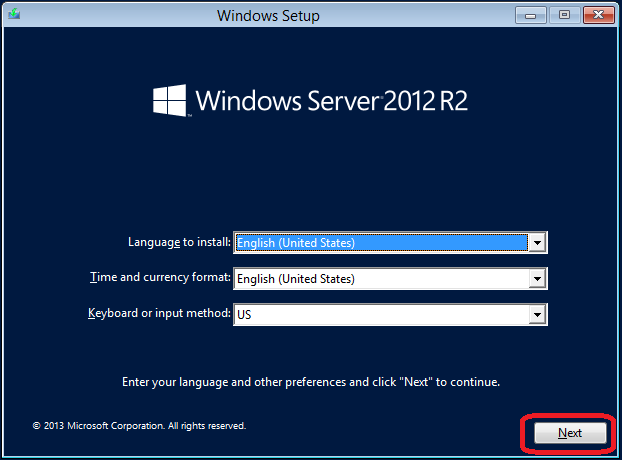
We choose the language wanted with the good keyboard layout and currency and we hit Next.
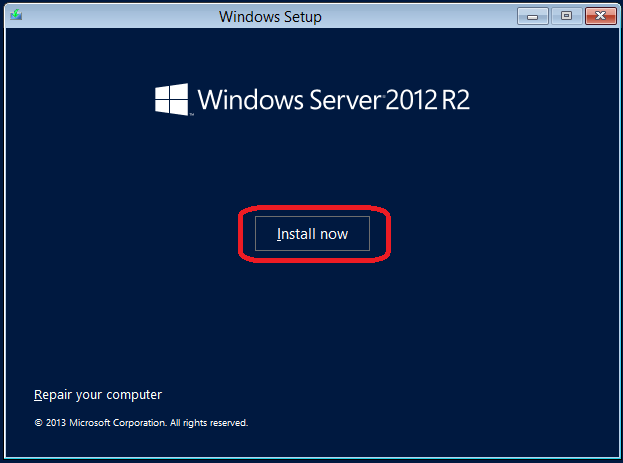
We click Install now !
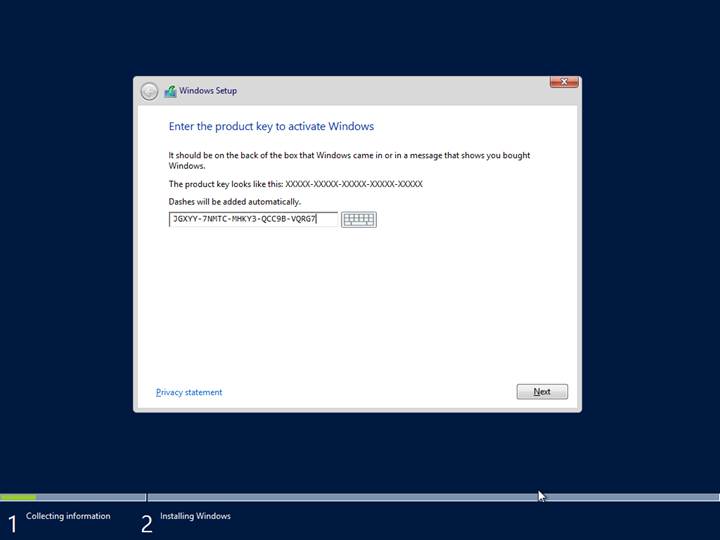
We enter the product key. There I wrote the official product key for the evaluation and we click Next !
 |
TIP : Always wait when you are sure the server work correctly and your setup is done to activate your Windows Server copy. |
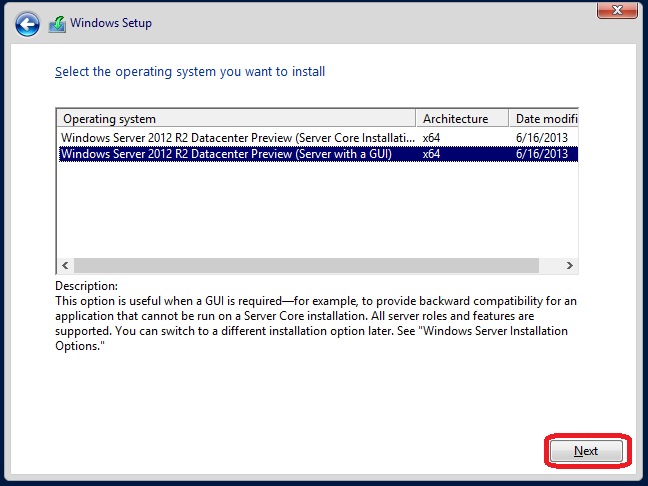
Select the GUI's install and click Next !
|
TIP : Unless you are good with the Powershell and you need a simple server, I strongly suggest the GUI's version. |
Click I accept the licence terms and click Next !
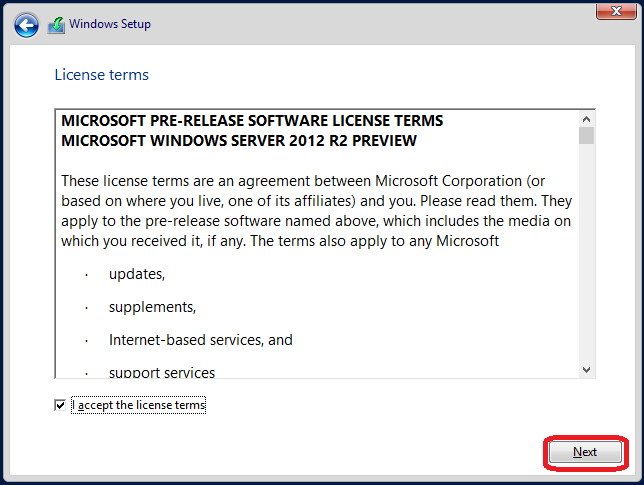
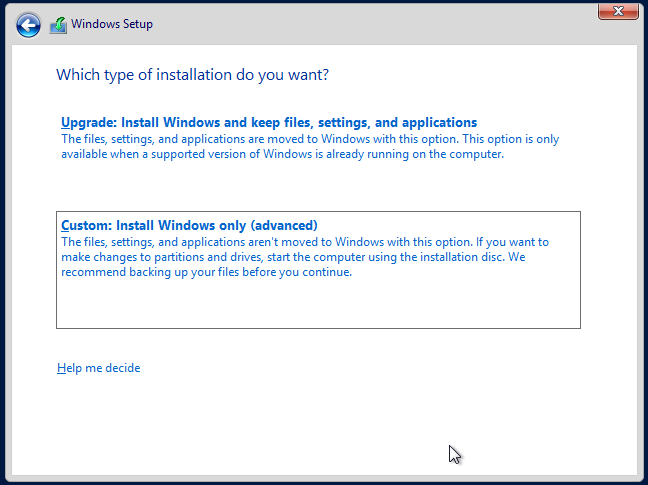
Click Custom! Like I told earlier I do the standard setup as you would do on a new server.
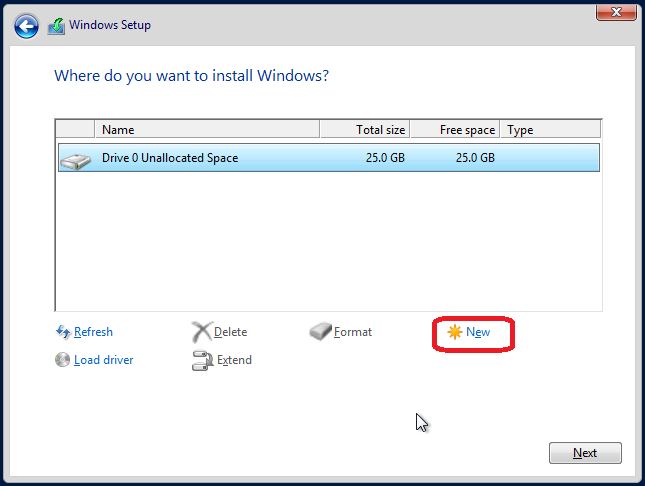
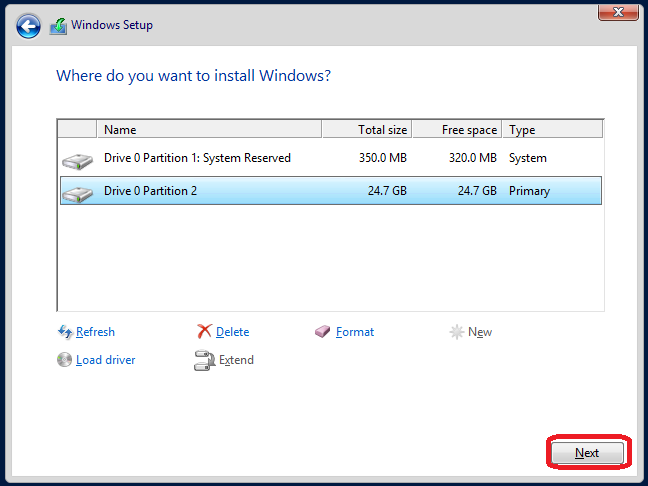
You click on the drive to format and you click New.
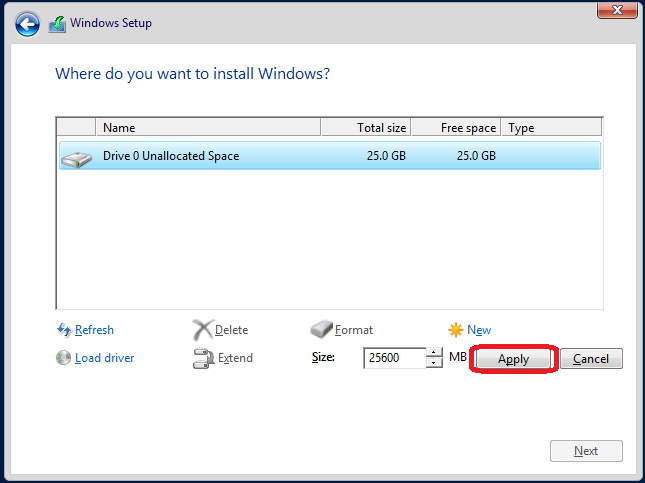
You select the size's wanted and you click Apply.
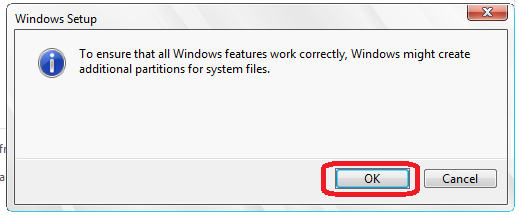
You click Ok into that dialog's box. It prompt you because it will create a reserved partition.
We review the selection, and we click Next.
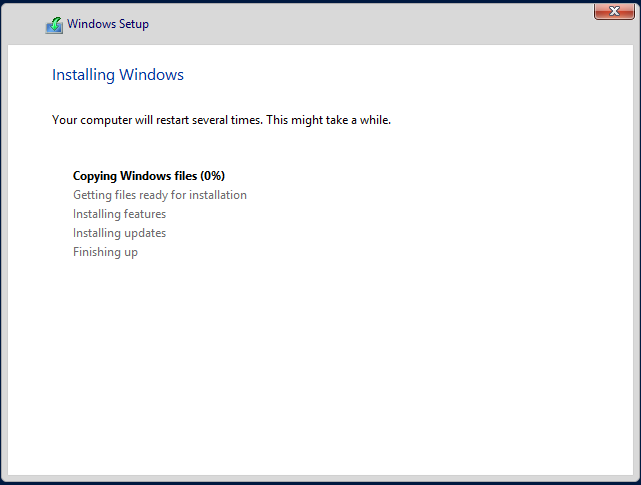
We now wait for actual setup..
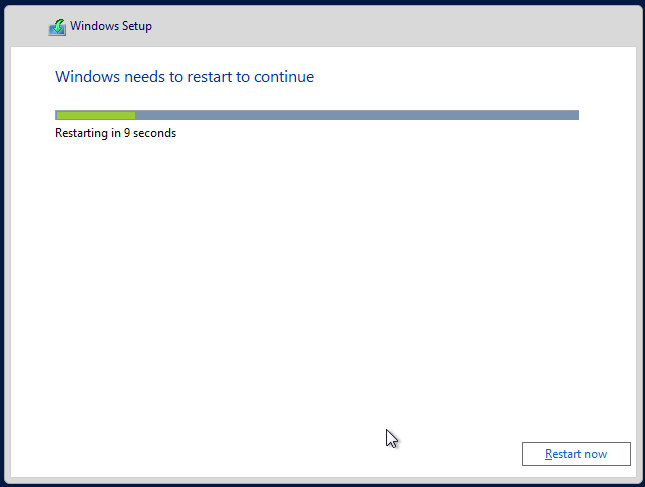
We now restart..
We now enter the administrator password and we click Next !
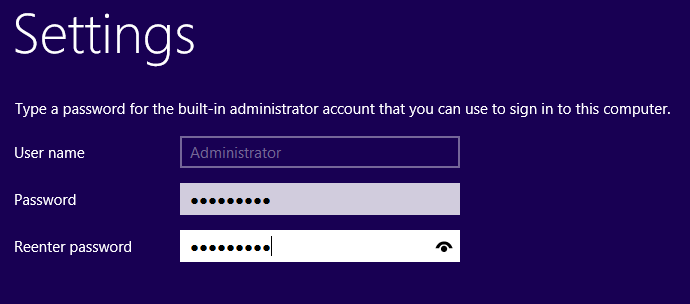
|
TIP : Be sure to remember it ! Even later when we will create an Active Directory Domain it will be the default password. |
Now we can login and we fall back to the default screen..
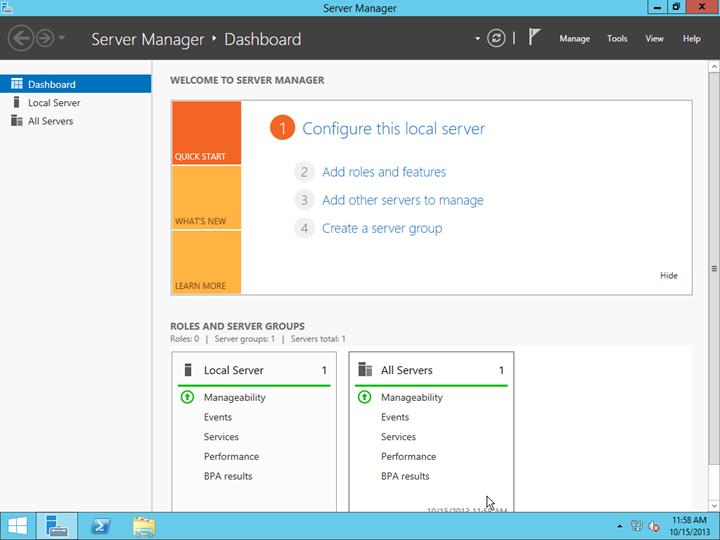
From there we now start !
Post Installation Task
Renaming the Server
In the menu we select the computer and we right click. We select Properties and inside that windows we click Change settings, and after Change...
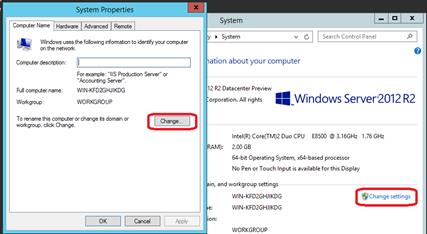 |
We select a good computer's name and we click OK
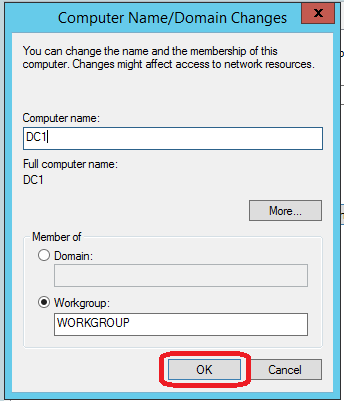
|
Good to know : Renaming an existing Domain Controller is not a easy task, but it's doable. Please see that link : http://technet.microsoft.com/en-us/library/cc782761(v=ws.10).aspx |
Windows Update
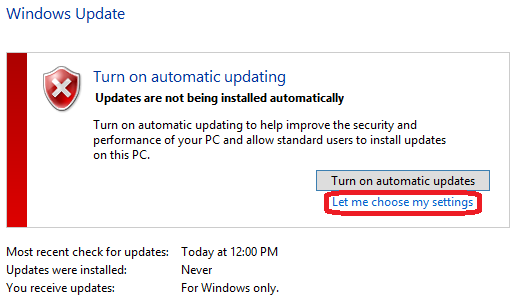
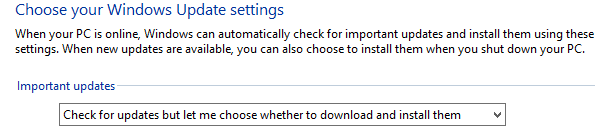
We now handle the Windows Update. If you got a WSUS's internally you can skip that general tip. In the server I setup I always put the automatic update at off. Why ? Because if you got a bad update that got installed or a DVD forgot into the server and that make the server to not reboot.. So I handle by hand all the update or with the WSUS's console I do approve only the one I want.
Windows Firewall
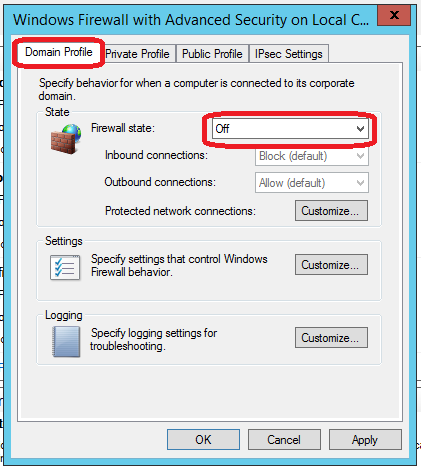
I tend to close the firewall when in the Office. Some technician prefer to leave it on, but in my case I prefer to disable it. Why you might ask me. For the simple reason that the Windows Firewall block certain port, but in my case all the needed port need to be open to allow my user to work. Firewall or not all the ports would be open and the Windows Firewall does not inspect any packet..
I prefer to limit the VLAN's traffic in the switch / main router if needed and to have a good router to prevent any WAN's abuse (as the DC is never in a DMZ or facing the Internet).
Some technicians will tell me it would be to prevent virus spanning, but if the file sharing is already activated the SMB's port is already open, thus it will not block anything..(Unless unsecured LAN can access the DC)
IP's configuration
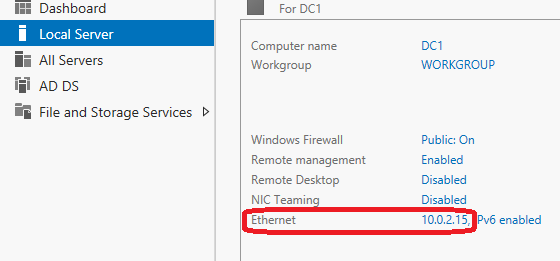
Go set it as static ! Changing a DC's IP later on is not a simple task ..
|
Good to know :Setting a static IPv6 address is a best practice. It’s a common vulnerability used. (Enabling a rogue DHCP server to give a false address to the server via DHCP) |
New Dell Firmware for the Equalogic (v6.0.6-H2)
October 4, 2013, 10:16 pmHi, there is a new critical hotfix for the Dell EqualLogic available;
There is the resume of it;
The v6.0.6-H2 firmware fixes a critical issue where, in rare circumstances, an error handling routine is not properly executed. Currently, this has only been observed in VMware environments, where a VMFS datastore may experience heartbeat metadata corruption, impacting the ability to perform operations on virtual machines (VMs). However, there is a small risk that a similar issue could be observed in non-VMware environments as well.
Following best practices can help improve the resiliency of your environment and your customer environment. If you have not already done so, we strongly recommend that you adopt the guidelines articulated in the technical report titled, “Best Practices when Implementing VMware vSphere in a Dell EqualLogic PS Series SAN Environment,” which can be found at the link below:
http://en.community.dell.com/techcenter/ extras/m/white_papers/20434601.aspx
Firmware v6.0.6-H2 carries forward all the feature improvements and fixes delivered with v6.0 and the maintenance releases up through v6.0.6.
Thanks everyone, and happy patching !