Windows Store Error - Firewall
July 11, 2022, 4:01 pm
Hi everyone
Today I wanted to share a tip for any sysadmin can encounter. It's for the Windows Store app and the GPO.
I stumbled into a environment that blocked the Windows Store to work, after multiple test I found that you really need the Windows Firewall at On to be able to restore the Windows Store.
The culprit in my case was a GPO that set at Disabled that settings;
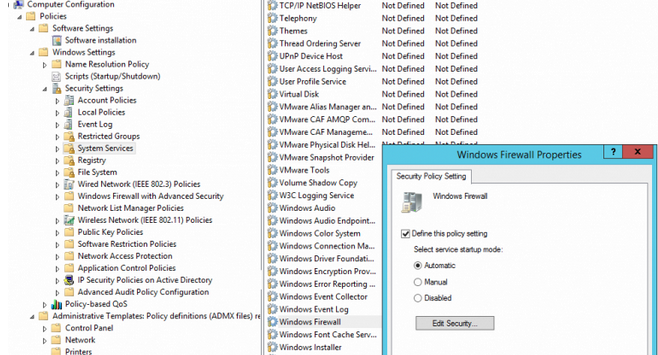
It took me time to figure it as the machine was using a third party firewall's solution, so the computer was not alerting me at all that the firewall was missing, and the store app just refused to open without any error.
Older HP Universal Print Driver for GPP
May 31, 2022, 3:59 pm
Hi everyone
I wanted to share a small tip if you need older HP Universal Print Driver for your GPP.
You might ask why, it's because in pushed GPO some older drivers work better for older printer to keep their settings, and to work in general.
The treasure groove is there; ftp://ftp.hp.com/pub/softlib/UPD/ :)
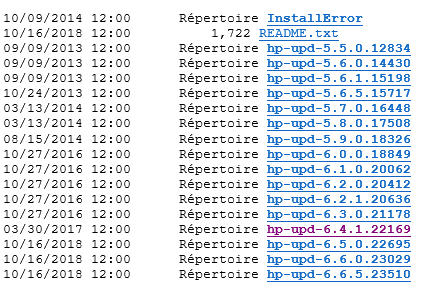
Enjoy if you need it :)
Edit #1 (2022-12-02)
It got to my attention that the FTP was removed. I setup a small archive repostery here if you ever need some; https://github.com/yagmoth555/older-hp-upd
Keep in mind I just have the 6.4.1.22169 at the moment.
Office 365 TLS 1.2 support
March 15, 2022, 3:58 pm
Hi everyone
Today I wanted to talk a small problem I seen on Office 2016, but running on really older OS.. like Windows 7..
Office 365 support for older cryptography maked some older OS get a problem to authenticate, so it block adding a new account or to get the email in Outlook in example.
To fix, I would say, please by god, install Windows 10 .. but if you can't convince your customer, at-least, for now, you can run that tool to get the TLS 1.2 by default in the OS, so it can connect back.
How to enable TLS 1.2 on clients and Update to enable TLS 1.1 and TLS 1.2 as default secure protocols in WinHTTP in Windows
Thanks !, and let hope Windows 7 don't come back so fast
GPO - Per machine Printer Settings
February 28, 2022, 4:54 pm
Hi everyone
Today I wanted to share a small script if you use per machine GPO / GPP to distribute local TCP/IP printers to your computers park.
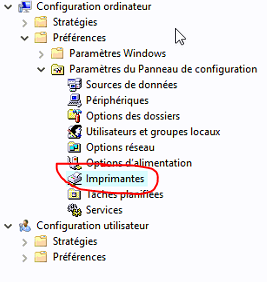
If like me sometime the settings are not push correctly I did a small script that check the local printer and find the corresponding print queue on the print server to set the options in the computer.
It seemed a need for me in some case depending on which driver I use, as some revert to the basic settings when pushed. The printing's default got ignored in such case.
The script look like that;
$Printers = Get-Printer
Foreach ($Printer in $Printers) {

$PrintConfig = Get-PrintConfiguration -ComputerName PRINTSERVER -PrinterName $Printer.name
Set-PrintConfiguration -PrinterName $Printer.name -PrintTicketXML $PrintConfig.PrintTicketXML
}
The script loop all locals printer and find the corresponding printer on the print server to set the option.
The script assume you use the same printer name than the one on the print server, which for me was logical because you have to enter a target print queue for publishing the printer.
Remote Desktop TSCLIENT Drive Mapping Problem (Content Redirection)
February 15, 2022, 5:43 pm
Hi everyone
Today I wanted to talk a symptom you might hit if you do content redirection with RemoteApp for a remote office while, the user click on a file located on a remote file share.
The symptom is a file lock can happen for the person and that block the document's saving.
That cause a bug in example Word or Excel that throw an error that the file is already in use. The user need to re-save the document to another name to save it when that happen.
The cause is simple; The content redirection access the share via the tsclient's client redirection. That force the remote computer to retrieve the file and send the file to the TS's server to be able to use the content redirection.
I did that small chart;
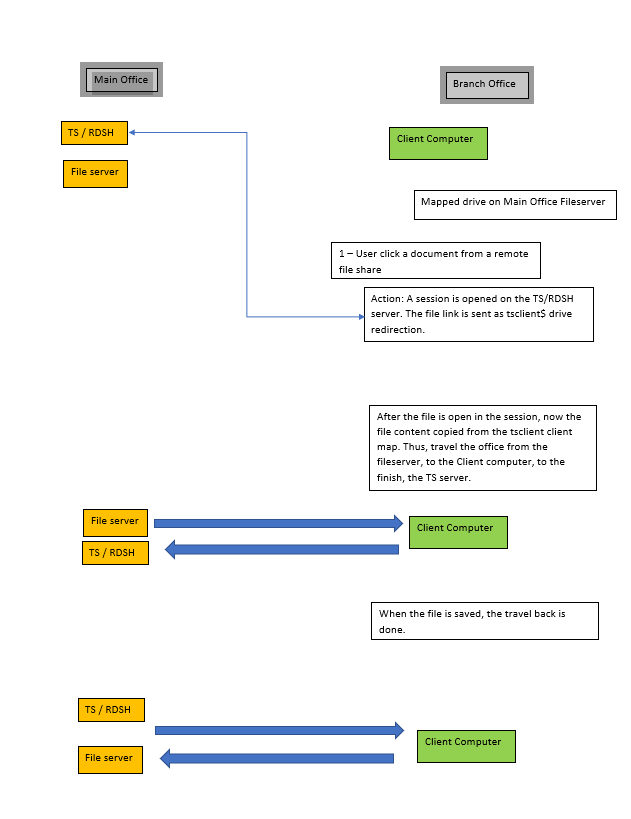
In my scenario the impact appear when the remote office got a high latency's link. You can see the RemoteApp connection got longer delay to open due to that fact.
To resolve the issue it's all done in the way you map the drive to the users. Normal drive mapping cause this issue, while a mapping done via the network location wizard solve that issue, as the RemoteApp open directly the file so it prevent all the network discussion from happening.
I would call that network map VS network location method to access the file.
If you do the wizard's mode to add a network location, it's via Explorer that you can trigger the wizard:
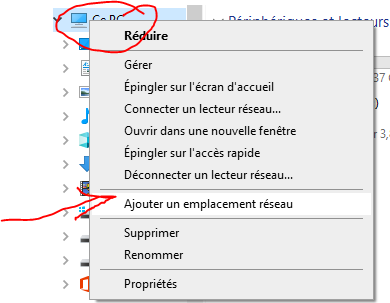
If you want to push that via GPO, it's where it become tricky .. You have to create a folder, an .ini and a .lnk for that folder..
In the GPO it's a 3 step procedure.
- GPP to create a folder inside that folder; %APPDATA%\Microsoft\Windows\Network Shortcuts
Ie; %APPDATA%\Microsoft\Windows\Network Shortcuts\HR Department
2. GPP to create a desktop.ini inside that folder with two options set inside it;
Ie;
Action Mettre à jour
Chemin d’accès au fichier %APPDATA%\Microsoft\Windows\Network Shortcuts\HR Department\desktop.ini
Nom de la section .ShellClassInfo
Nom de la propriété CLSID2
Valeur de la propriété {0AFACED1-E828-11D1-9187-B532F1E9575D}
AND
Action Mettre à jour
Chemin d’accès au fichier %APPDATA%\Microsoft\Windows\Network Shortcuts\HR Department\desktop.ini
Nom de la section .ShellClassInfo
Nom de la propriété Flags
Valeur de la propriété 2
3. You set the link to the correct resource with a shortcut named target;
Type de cible Objet système de fichiers
Chemin de raccourci %APPDATA%\Microsoft\Windows\Network Shortcuts\HR DEpartment\target
Chemin d’accès de la cible \\fileserver\hr
Touche de raccourci None
Exécuter Fenêtre normale
After that, now your users can click inside those folder to navigate to the file share, and when they will click a resource MSTSC will open directly the file from the network share, bypassing the tsclient redirection !