Hi everyone
Today I wanted to share a small tip that can help if your server is stuck on reboot with a Windows patch that don't want to terminate.
Please use with precaution the tip to not loose data or break the OS.
In my case it was useful on a Windows Server 2019, as it was stuck for 3 hours and more, and the CBS log was growing indefinitely.
You can use ps exec, but we have tasklist that support a remote computer.
To use that way;
tasklist /s remote_computer with the username and password. /u domain\username /p password
tasklist /s remote_computer /u domain\username /p password
After the command we got a list with all PID.
To stop the Windows Update, in my case I had to close Windows Installer service.
The command is the same, except we give to it the PID, or we could use the /im parameter to target the executable image name. (/f force the closure)
taskkill /s remote_computer /u domain\username /p password /pid PID /f
Hi everyone
Happy new year 2022! And I wanted to share that if you have the latest patch installed in your Exchange you might have run into a YK22 bug !
The Microsoft Filtering Service got hit by a bug in it’s patch system.
To resolve in the short term please run;
Set-MalwareFilteringServer -BypassFiltering \$True -identity \<server name>
Or;
Disable-AntimalwareScanning.ps1 -forcerestart from the script folder.
The bug is explained there; https://old.reddit.com/r/sysadmin/comments/rt91z6/exchange_2019_antimalware_bad_update/ but it’s a variable error from the year 2021 to 2022 that make a long overflow vs an unsigned long that would had been ok.
Thanks everyone for reading, and good year !! :)
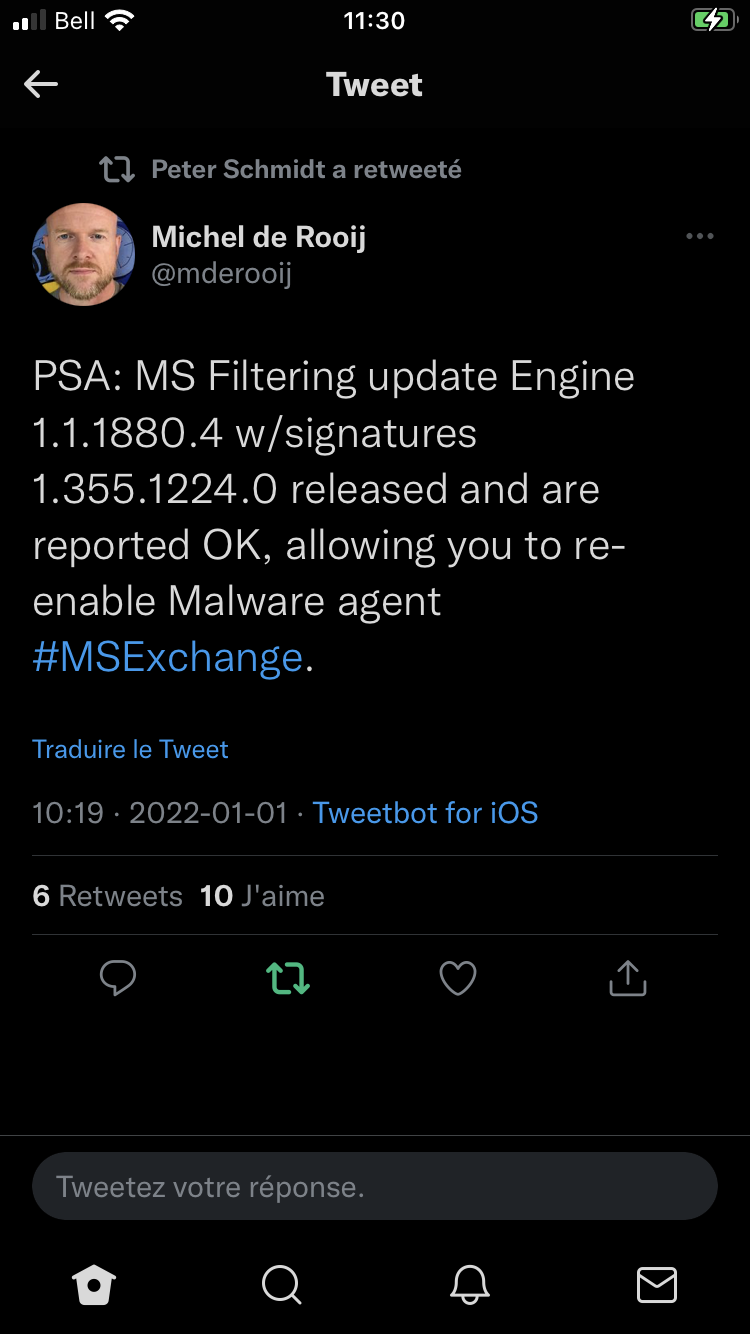
Update; it’s now fixed;
MSI: The System Administrator has set policies to prevent this installation
December 22, 2021, 2:51 pm technology
Hi everyone
Today I wanted to talk a problem I seen on newer Windows Server 2019 in a RD setup.
Some user were having problem with a GPO for software installation (per user).
After some diagnostic I found on all my 2019 that the MSI system is restircted now by default.
If you stumble upon this bug;
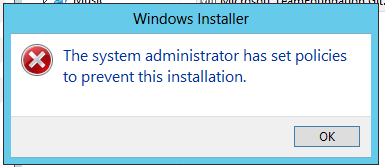 Then you must be like me, and you have a registry to change.
\[**HKEY_LOCAL_MACHINE\SOFTWARE\Policies\Microsoft\Windows\Installer\]
"DisableMSI"=dword:00000000**
Now it should work.
Hi everyone
I wanted to share a new, which is almost one month old.. but it's worth nothing, it's the new ISO for LTSC is now out :)
It inherit the feature of Windows 10 21H2 !
The servicing seem longer too, especially the IoT's version. As such I suspect it will be one of the last LTSC version as Windows 11 is now here.
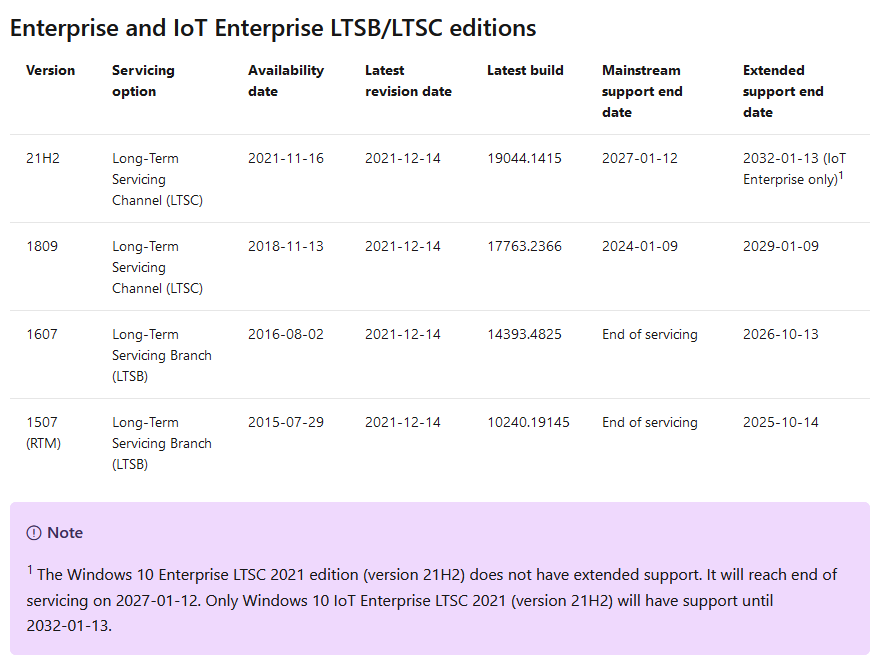
What's new in Windows 10 Enterprise LTSC 2021
Windows RDS | Publishing RADC shortcut on the DesktoP (part 2)
December 8, 2021, 11:21 am technology
Hi
Today I will talk a small tip to be transparent to the users, and thus to enhance a tip I already gave in the past, as seen there; Windows 2019 RDS | Publishing RADC shortcut on the Desktop
In my older blog post I was creating a shortcut to only the RADC's folder from the start menu, but on the desktop.
Today I wanted to be more granular and create shortcut for each applications on the user desktop. The user experience is greatly enhanced that way.
It's a 3 steps GPO to do, but first we need to generate our .ico and .rdp's files to use.
Go inside a computer that as the RADC's farm installed correctly, and navigate inside the folder; %AppData%\Microsoft\Windows\Start Menu\Programs\Work Ressources (RADC)
From there select the shortcut you want to deploy, like Word, and click property.
From the property windows, check the path of the argument, it's where our .rdp and .ico are. The shortcut created are just mstsc.exe "path/to/local profile/". It should be a path liks, %AppData%\Roaming\Microsoft\Workspaces\{....-....-....-....}\Ressources\Word.rdp"
Copy the .RDP you want and the associated .ICO, which are cached there too.
I usually copy them to a folder where all computer can read, like a sub folder in NETLOGON.
From there we start our GPO.
1. Create a GPO, in my example, "RADC - Desktop Word shortcut"
2. Create a file copy to copy the .rdp. Under user\Preference\Windows parameters\Files. The source is like \\dc\netlogon\source\Word.rdp, the destination is a administrative folder on the computer, like c:\it\word.rdp.
3. Create a file copy to copy the .ico. Same source and destination's folder as the previous one.
4. After that we create a shortcut, under preference too.
We use target as %DesktopDir%\Word, target; c:\it\Word.rdp, and we select the the target icon as c:\it\Word.ico.
I use to copy the files for a reason, if you DC become available for a short period of time, it's more efficient to simply copy the files locally and create a shortcut to those local's files.
5. After that we use the same security to apply this GPO's to as the group you make Word visible with in your RADC's console.
Voila, the shortcut should be visible easily after that. It's more work in the start, but after that it's less call to find the resource in my own opinion.
Thanks for the reading
Popular Tags
Archives
-
2026 (21)
-
October 2026
(16)
- Blog content imported
- Added language; Hindi
- Added more contents for Polish
- App Review: Go Talk Now
- New language added; portuguese
- Website hardened for external link
- New spam for App Developper
- Website maintenance
- Tech Tip: Meraki firewall possible parental control
- New apps release for Android
- Router review - Sophos UTM
- Tech Tip: ASUS parental's control for home router
- Tech Tip: Amazon Fire Tablet Parental's control
- Youtube Restriced Mode
- Ad network for small COPPA website
- 100K visit Milestone achieved !
- September 2026 (3)
- August 2026 (2)
-
October 2026
(16)
- 2024 (4)
-
2023 (19)
- December 2023 (2)
- October 2023 (6)
- September 2023 (2)
- July 2023 (1)
- June 2023 (1)
- May 2023 (2)
- April 2023 (1)
- February 2023 (2)
- January 2023 (2)
-
2022 (26)
- December 2022 (3)
- November 2022 (5)
- October 2022 (4)
- September 2022 (2)
- July 2022 (2)
- May 2022 (1)
- March 2022 (1)
- February 2022 (4)
- January 2022 (4)
-
2021 (15)
- December 2021 (4)
- November 2021 (1)
- October 2021 (2)
- September 2021 (1)
- August 2021 (1)
- May 2021 (1)
- April 2021 (1)
- February 2021 (1)
- January 2021 (3)
-
2020 (18)
- December 2020 (2)
- November 2020 (1)
- October 2020 (2)
- September 2020 (2)
- August 2020 (1)
- July 2020 (1)
- March 2020 (1)
- February 2020 (2)
-
January 2020
(6)
- Windows 10 IoT Terminal Deployment – Part 4 – Apps Publishing (HPDM - HP Device Manager)
- Windows 10 IoT Terminal Deployment - Part 2 - Protect the Hard Disk ? - Deploy Write Filter !
- Office 2019 / 365 Deployment
- Windows 10 IoT Terminal Deployment - Part 1 - Introduction
- Microsoft Team support for CentOS 7 / RedHat
- Prevent Office from saving to OneDrive by default
-
2019 (29)
- December 2019 (3)
- November 2019 (3)
-
October 2019
(8)
- Microsoft Q&A Launch !
- Windows Server 2019 OEM Activation problem (VM)
- StackOverflow moderation
- Microsoft Exchange Information Store Error - EventID 5003 | EventID 3154 - Time error
- Windows 10 - Update Stay at Download Waiting
- Windows Server 2019 Domain Controller - Ready for production ! (KB4516077)
- 0365 - Exchange Online X-Sender Spam Problem
- Active-Directory - Invoke-InternalEnsureADDSComponentInstallState not recognized - DCPromo
- September 2019 (1)
- August 2019 (1)
- July 2019 (2)
- April 2019 (1)
- March 2019 (1)
-
February 2019
(7)
- RDS: HP Thin OS resolution problem in Full Screen mode !
- Unable to rename domain controller: Account already exists
- Windows Update Error 80243004
- Windows 10 and the faulty network adapter
- Windows Server 2019 RDS: Install Error: dismapi_error__failed_to_enable_updates rds-web-access
- Windows Machine Unknown state on ESX
- RDS: Published App + Dell / Wyse ThinOS + Juniper DHCP relay option
- January 2019 (2)
-
2018 (28)
- December 2018 (1)
- November 2018 (6)
- October 2018 (1)
- September 2018 (2)
- August 2018 (4)
- July 2018 (2)
- May 2018 (1)
-
March 2018
(7)
- Windows 7/10 + Terminal + SmartCard Redirection with XenDesktop
- Windows 7/10, vSphere 5.5+, Citrix Desktop Studio Power State Unknown
- Logon Failure: The target account name is incorrect
- DNS Server Service - Error 1717: The interface is unknown
- Migrating files from an Active Directory Domain to another, unblocking the files ?
- Active Directory: Reset the clock on an expired password for an account
- OneDrive on Local Account ?
- February 2018 (2)
- January 2018 (2)
-
2017 (18)
- December 2017 (1)
- October 2017 (1)
- September 2017 (3)
- August 2017 (3)
- July 2017 (3)
- June 2017 (6)
- April 2017 (1)
-
2016 (26)
-
October 2016
(24)
- Windows Server - Prevent users from changing printer preferences for color
- Windows Server 2012 R2 - Firewall Logging for RDP (or any other service!)
- Windows VDA - Script to re-install the Microsoft Update add-on
- Windows VDA / Terminal Server session - Kill for good that Java update Warning !
- The Citrix purge ! part 1
- Windows - Outgoing Fax in the Console
- SQL Server 2014 on a Domain Controller ?
- Windows VDA + Pre Deploy Juniper client / Pulse Secure
- How to add non latin entry in the Windows Host file ? (%SystemRoot%\System32\drivers\etc\hosts)
- Windows Remote Desktop Service - Manually creating a .RDP file
- Microsoft Office 2013 32-bit over 64-bit error
- Windows - How to easily deploy XenApp multiple farm config for a user
- Windows Server 2012 R2 KB3185279 & KB3185331 seem to break Google tip to block Youtube with DNS
- Microsoft Offer some Virtual Machine for testing purpose
- In Windows Server 2012 R2, and error copying file name too long ?
- Windows Server - Stress that spooler ! - The terminal Server session will love you after
- Windows/Linux/BSD - How to check if the memory is functioning in ECC mode
- PowerShell - RDS - XenApp - Force password change for account near passoword expiration date
- Temporary file from UsrClass.dat (sometime associated with NTUSER.dat)
- How to export Event Viewer data to Excel with PowerShell
- Visual Studio 2015 on Windows Server 2012 R2
- Remove any trace of an Antivirus was installed (WMI)
- Windows VDA + Roaming Profile + OTP program
- Windows VDA – KMS problem - Resetting rearm count
- September 2016 (1)
- June 2016 (1)
-
October 2016
(24)
- 2015 (2)
-
2014 (5)
- November 2014 (3)
- March 2014 (1)
- January 2014 (1)
-
2013 (10)
- November 2013 (2)
- October 2013 (1)
- August 2013 (3)
- May 2013 (2)
- February 2013 (2)
- 2012 (2)
-
2011 (7)
-
June 2011
(7)
- The hypervisor was not contactable at the supplied address
- Wyse Xenith FTP bug from old firmware.. (post 1.5.xx)
- Messaging between Desktop in XenDesktop
- Unknown publisher.. small annoyance
- Best Practices for Configuring Provisioning Server on a Network
- Citrix XenDesktop and McAfee EPO script
- How to cold reset an APC ups
-
June 2011
(7)
- 2010 (2)