Windows 11 ISO now available !
August 19, 2021, 1:31 pm
Hi everyone
A good new, Microsoft now released the first set of ISO for Windows 11 (build 22000.132)
Please see there for the link; Announcing Windows 11 Insider Preview Build 22000.132
To quote the article, the new changed added is;
Chat from Microsoft Teams is now available for Windows Insiders in the Beta Channel. We’re also excited to begin rolling out one-to-one and group audio and video calling, with many of the features that you’ve come to expect. You can create and join meetings. You can toggle your microphone and camera on or off and choose your preferred speakers, mic, and camera with device settings. You can manage meeting information and options. You can share your screen, see the roster of participants, admit meeting participants from the lobby, chat and see people’s video in a gallery view. We’re excited to bring this experience to a growing network of people!
The new Snipping Tool for Windows 11, updated Calculator app, and updated Mail and Calendar apps are rolling out to Windows Insiders in the Dev Channel – see this blog post here for details!
Thanks
Windows 10 IoT - DISM for updating Windows Update
May 17, 2021, 10:35 am
Hi everyone
Today I wanted to discuss small tips for making Windows Update via DISM.
The goal is that often on IoT terminal the Windows Update services is off and often not configured correctly, as the goal of IoT is often to create never changing terminal for a specific's task. This kind of setup bring some headache sometime as to update it mean sometime when we put back on the Windows Update's service, misconfiguration can happen.
The other goal is that often the image file is used to deploy such terminal, as such applying a patch offline to them help for future deployment.
Today I will talk the second's goal.
DISM is a powerfull tool, but it's to know it's force that is a challenge.
To update a offline image the first step is to get the DISM that is shipped in the Windows Assessment and Deployment Kit (Windows ADK) (https://docs.microsoft.com/en-us/windows-hardware/get-started/adk-install)
After installing it we need to mount our WIM's file with the /mount-wim command's line.
dism /mount-wim /wimfile:"c:\en_windows_10_enterprise_2016_ltsb_x64_dvd_9059483\sources\install.wim" /mountdir:"c:\win10" /index:1
After we add the package with /add-package
dism /image:"c:\win10" /add-package /packagepath:"c:\patch\windows10.0-kb4576750-x64_c4e0b5e0f0835db971a40058aa17ae9a0d2f1e2a.msu"
After we need to commit the file back with /commit
dism.exe /Unmount-wim /mountdir:"c:\win10" /commit
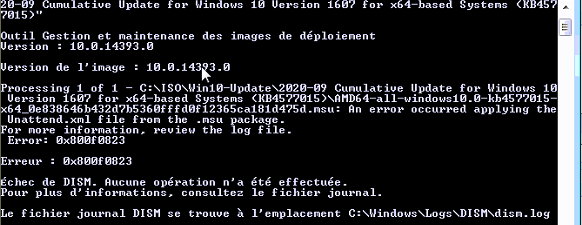
For reference if you see a DISM error #0x800f0823 it can mean you are using the wrong DISM, not the one provided with the ADK's toolkit.
The error look like that;
That conclude today talk,
Thanks everyone !
Windows 10 - RemoteApp Content redirection DOCX
April 16, 2021, 3:50 pm
I wanted to share a small tip if you do RemoteApp content redirection with Microsoft Word.
The content redirection can bug out of the box for certain machines because by default the .docx is associated with WordPad.
To fix the error you can simply push a GPP to delete that key;

I suggest to target they key in a computer GPO, as when the user will login the Remote Desktop Connection will refresh and reset the content redirection at the user login.
Windows 10 VDI Deploy Teams machine based
February 2, 2021, 11:30 pm
Hi
Today I wanted to share a small tip if you want to deploy Teams in a VDI environment.
Usually the Teams client install into the user profile, as such on golden image it's not practical to do it that way.
Roaming profile or Citrix Profile Management make it easier to follow between machine, but it add complexity to manage that way. To be exact it's these two folders that need to be synced; C:\Users\username\AppData\Local\Microsoft\IdentityCache (%localAppdata%\Microsoft\IdentityCache) and C:\Users\username\AppData\Roaming\Microsoft\Teams (%appdata%\Microsoft\Teams).
Team got the Installer service, which add a hidden Teams setup inside the Program File's folder. The utility is useful, but Team got the full MSI too, which I prefer to use.
You can use GPO to deploy it, or manually inside the golden image that way;
msiexec /i Teams_Windows_x64.msi /l*v log.log ALLUSER=1 ALLUSERS=1 /QN OPTIONS="noAutoStart=true"
I like the noAutoStart option for a golden image scenario, the settings prevent the auto run from Teams when the user never did runned it. So after an user runned Teams, the auto start kick in, but it prevent one for an user that never used Teams.
A note is the ALLUSERS setting, the main difference is that setting publish the desktop icon for Teams, but to run from the ProgramFile, not directly from the user profile, so the desktop icon is valid for anyone on the computer :)
Updating Office without opening it
January 29, 2021, 11:42 pm
Hi everyone
I wanted to share a tip if you wanted to update an office installation without the need to open it.
The gold is to prevent the activation trigger or the trial starting if it's for an Office installation inside an OS deployment image in example. I know we can easily do; File > Office Account > Update Options > Update Now, but it's not my goal for this post.
The command to use is;
"C:\Program Files\Common Files\microsoft shared\ClickToRun\OfficeC2RClient.exe" /update user
If you need it to be silent;
"C:\Program Files\Common Files\microsoft shared\ClickToRun\OfficeC2RClient.exe" /update user displaylevel=false forceappshutdown=true
You can change the same way the update channel;
“C:\Program Files\Common Files\Microsoft Shared\ClickToRun\OfficeC2RClient.exe” /changesetting Channel=Current
and finally you can use psexec to send the command to a group of computer;
psexec @computers.txt -d -n 3 cmd /c “C:\Program Files\Common Files\Microsoft Shared\ClickToRun\OfficeC2RClient.exe” /update user updatepromptuser=false forceappshutdown=true displaylevel=false
Hope it help :)