Windows Server - Stress that spooler ! - The terminal Server session will love you after
October 21, 2016, 6:55 pmToday I will share a tip that is useful to stress test the windows spooler.
Any TS admin will know how much this can become frustrating to debug the print spooler, as often the spooler service will stop or will hang at 100% CPU usage.
The problem does not arise much when a customer use the Terminal Server Easy Print's driver, but a lot of older TS's does not use it, or they still need old driver for special's printer.
To stress test the driver I found a useful Citrix's tool.. wait, citrix ? yes as everyone know that xenapp is built over terminal server's service, thus their tool can be used without problem to test a TS.
The tool is StressPrinter (https://support.citrix.com/article/CTX109374)
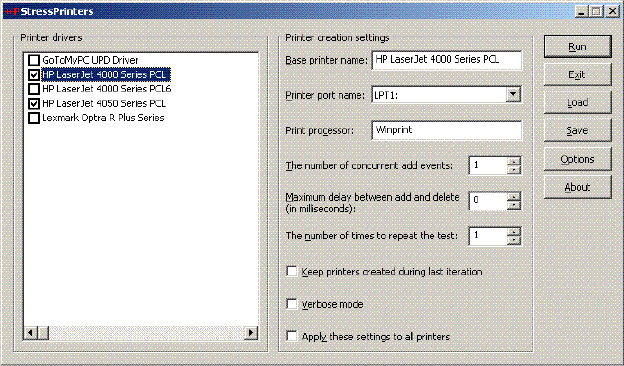
I will quote the tool info;
Many printer driver problems in Terminal Services/Remote Desktop Services environments revolve around poor multi-threaded performance, which in turn can cause print spooler instability. Problematic multi-threaded performance is usually exposed when multiple users connect to a Terminal Server simultaneously using the same printer driver. Symptoms include the failure to autocreate client printers, increased thread count of the printer spooler and/or Citrix Print Manager services, and possibly the unresponsiveness and/or unexpected termination of these services (stop responding).
This tool can be used to simulate multiple sessions auto-creating printers using the same printer driver.
It can also be used to compare the following among various drivers:
- CPU load incurred while creating a printer using a particular driver- Time required to successfully create a printer using a particular driverNote: The current version of the tool does not test concurrent printer capabilities, settings, or actual printing calls, which are also possible causes of failing to print. Therefore, good/passing stress results do not always mean that printers are actually working or certified.
Now with that tool we can stress a bit more the driver to find some culprit before it crash live. A tool in our toolbox :)
Windows/Linux/BSD - How to check if the memory is functioning in ECC mode
October 21, 2016, 6:17 pmIn case the BIOS does not show the memory's configuration, while in Windows you can issue that simple command to validate if the memory is working in ECC.
wmic MEMORYCHIP get DataWidth,TotalWidth
You will get an output like that;
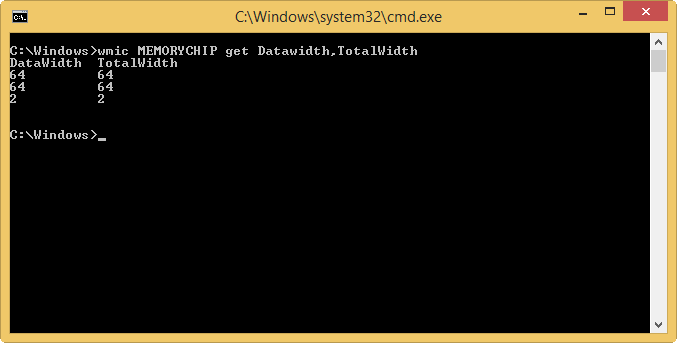
The number to watch is the TotalWidth:
64 = Not ECC
72 = ECC
An bonus, if you are running a BSD or Linux's OS a similar command exist: dmidecode -t 17 or dmidecode -t memory
It would give an output like :
dmidecode 2.12 SMBIOS 2.5 present.
dmidecode 2.12
SMBIOS 2.5 present.
Handle 0x1100, DMI type 17, 28 bytes
Memory Device
Array Handle: 0x1000
Error Information Handle: Not Provided
Total Width: 72 bits
Data Width: 64 bits
Size: 2048 MB
Form Factor: DIMM
Set: 1
Locator: DIMM1
Bank Locator: Not Specified
Type: DDR2
Type Detail: Synchronous
Speed: 667 MHz
Manufacturer: AD00000000000000
Serial Number: 00002062
Asset Tag: 010839
Part Number: HYMP125P72CP8-Y5
Rank: 2
You need to watch the TotalWidth again, there it's 72 for ECC.
PowerShell - RDS - XenApp - Force password change for account near passoword expiration date
October 21, 2016, 3:12 amHi everyone !
Today I will talk a small tip if you need to want to make sure no password expiration will happen during the day.
Why the tip;
- It's a way to prevent any user to need to change the password during a live TS' session, and at the same would force a re-logging.
- It will force the user to change at the connection attempt the morning.
- If you use the Citrix Receiver in the Windows Client OS with SSO's option and your PN Agent site is set to Pass-through Authentication, then that will happen:
- The receiver will to ask for a password change during the attempt to launch the published application
- As the password changed, the receiver will pop a windows to enter the new user credential.
- Indirectly, the Citrix Receiver is now set to a manual authentication, no longer using pass-through authentication (until next time the user change is password...)
The tip make the password expire at X time before the real password expiration
# This PowerShell Script will query Active Directory and return the user accounts with passwords
# set to expire before the end of the next day, export a list of the affected accounts, and require
# a password change at the next logon. The script is configured to ingore accounts which have been
# configured with passwords that never expire, and to ignore accounts who do not have permission to
# change their own password. Any other account would be affected, so be warned before running this
# script, as you could experience unintended consequences. Either modify the script to reduce the
# scope of user accounts, or ensure that accounts that shouldn't be affected are either flaged with
# a non-expiring password or are flagged with "cannot change password. When ready to run/schedule
# in production, remove the -WhatIf from the last line.
#
# - MWT, 10/11/13# The 89 is based upon your environment. If passwords expire every X (90) days, and you run the script
# in the early morning, you can set it to -1*(X-1) (-89), if you run the script late at night, set it to
# -1*(X-2) (-88).Import-Module ActiveDirectory # Required for PowerShell 2.0 only
\$a = (Get-Date).Date.AddDays(-88)
# The following line will build the variable based upon the noted criteria
\$b = Get-ADUser -SearchBase "OU=Contonso,DC=com" -Property Name,SamAccountName,PasswordLastSet,CannotChangePassword,PasswordNeverExpires -Filter {(PasswordLastSet -lt \$a) -and (PasswordNeverExpires -eq \$false) -and (Enabled -eq \$true)} | Where-Object {\$_.CannotChangePassword -eq \$false}# The following line will display/export the data logging the accounts to be changed; please note the
# Out-File path and change to suit your needs.
\$b | Format-Table Name,PasswordLastSet,CannotChangePassword,PasswordNeverExpires -AutoSize# The following line will actually flag the accounts to require a password change (after -WhatIf is removed)
\$b | ForEach-Object {Set-ADUser -Identity \$_ -ChangePasswordAtLogon \$true}
Now with that script, it can be planned each day to run after the work shift. A -WhatIf can be added to the last line to test the command before running it live.
On top of that tip, we can change the password expiration warning to less than the value we configure the script. In example in the script I do a -2, Thus there for the password expiration warning I would set it to 1. That way I'm sure the user are not remembered to change their password in the session/login.
The group policy to alter this default can be found at: Computer Configuration\Windows Settings\Local Policies\Security Options under Interactive Logon: Prompt user to change password before expiration
Thanks !
nb The original's script was took there, but it was modified by me to work on newer OS.
Temporary file from UsrClass.dat (sometime associated with NTUSER.dat)
October 20, 2016, 4:36 pmUsrClass.dat{randomnumber}.TM.blf’s file filing up your user hard disk space ? It’s what and can we erase them is what I will talk today. (if you can't run the diskcleanup wizard)
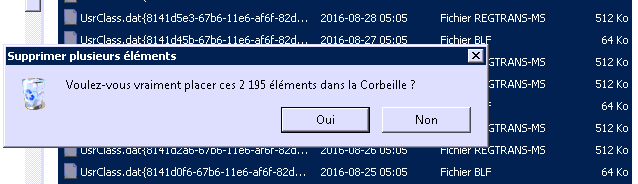
(or/and with those files)
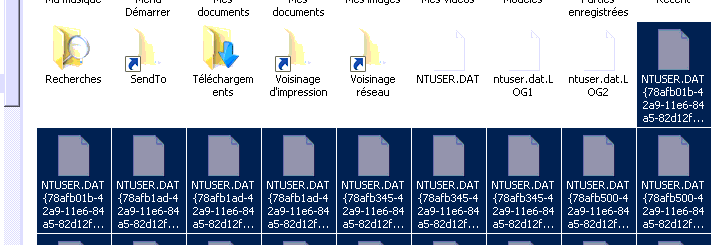
A background; those files are temporary registry settings that are not yet wrote in UsrClass.dat. The OS to prevent some corruption write those files in the registry when it determine it’s ok to write them safely. The file act like a .TMP’s file.
UsrClass.dat contain : HKEY_USERS\\<User SID>_Classes (HKEY_CURRENT_USER\Software\Classes) (source)
If your profile is fulled with those files it mean something broke the OS's step. It’s a warning to check what happened to fix the real problem. We start by checking the Event Viewer;
In my case I used one file timestamp to search correctly the eventlog.

I was able to find it was caused by a scheduled restart, and that a service was giving an error.
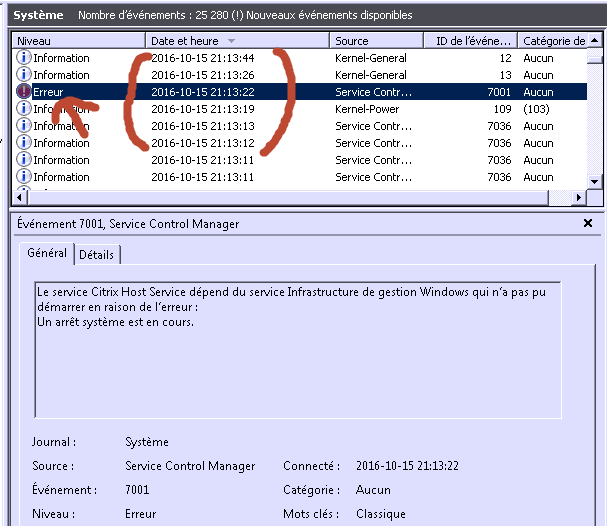
For me after analyzing the why and the file I can safely remove those files. A note, running the diskcleanup tool would had been a lot more safier and faster, but in my case I wasn't able.
Thanks !
How to export Event Viewer data to Excel with PowerShell
October 20, 2016, 1:52 pmHi everyone
Today I will give a tip on how to export event viewer data to Excel with PowerShell
- First log into your machine
- Open a PowerShell's console
- Run
Get-EventLog -LogName Security -ErrorAction SilentlyContinue | Export-Csv output.csv
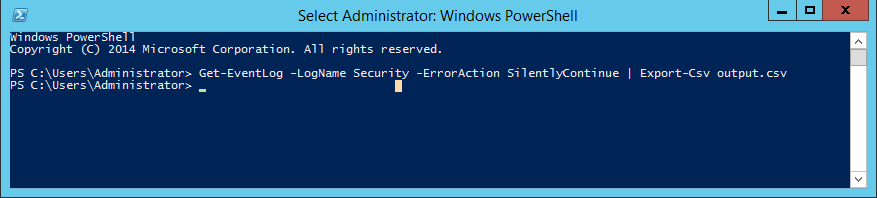
- Open the file in Excel

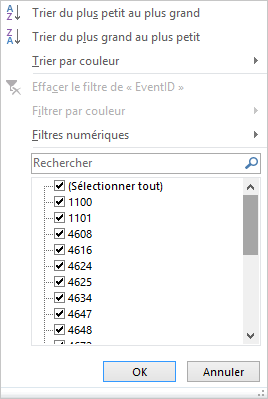
- Now we will add column filter to filter the file
- Erase the first line, select Filter
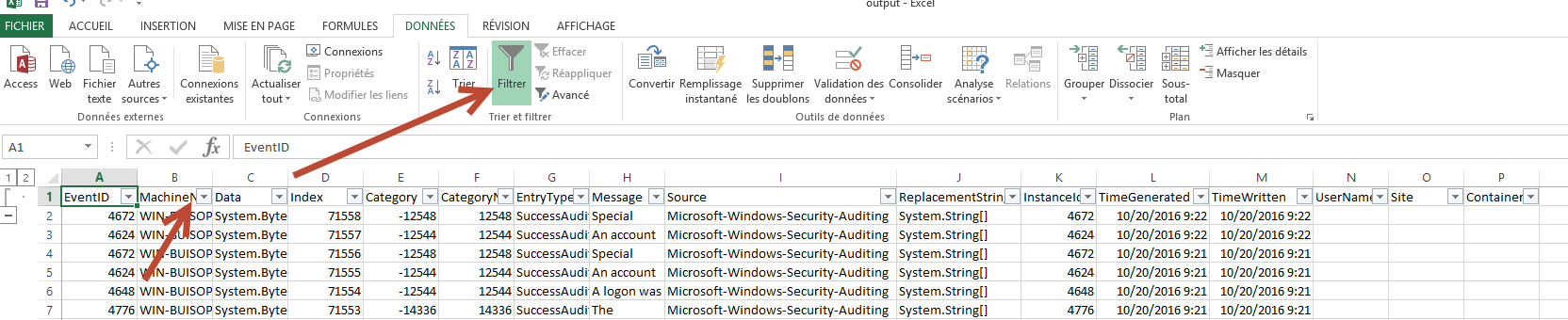
- Now the filter is available
Enjoy the tip ! :)
Thanks